
The Man on the Train
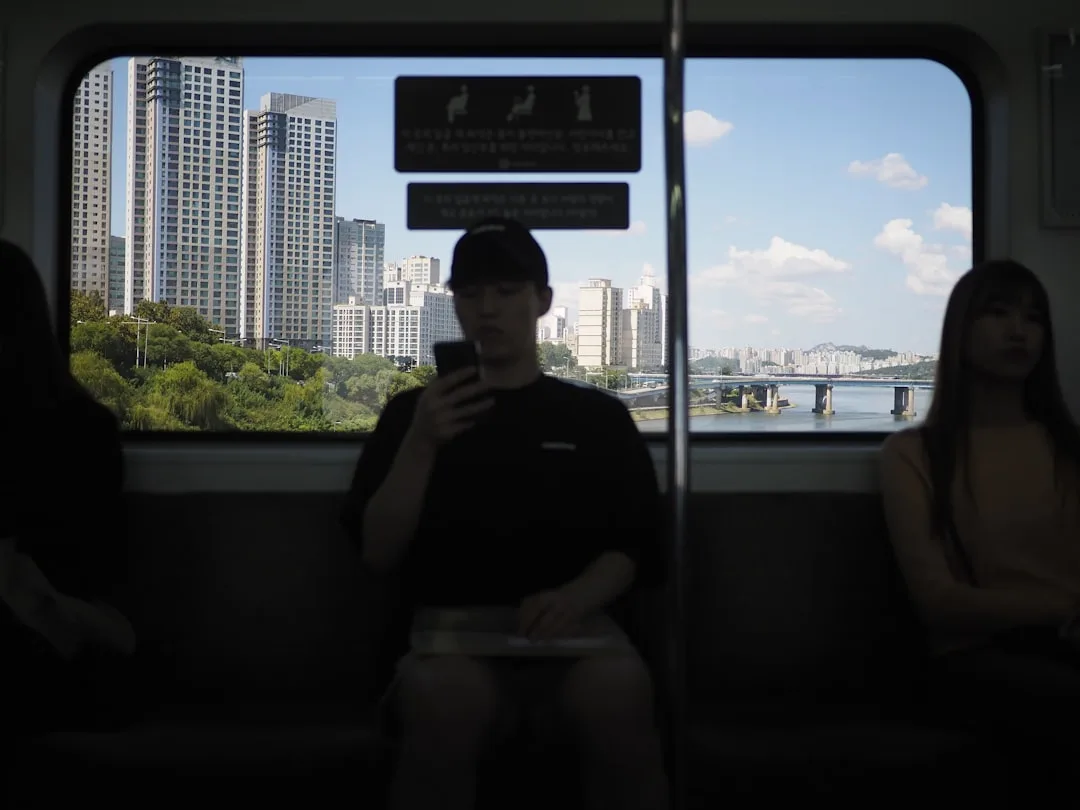
A man standing on a crowded train at half past seven in the morning.
He opens his phone with one hand, the other holding the rail above his head. And he doesn't have headphones today, because he forgot them.
Your video passes in front of him. The thumbnail caught his eye, so he tapped.
He saw a face talking.
He waited two seconds.
And understood nothing, because everything in the video lives in the audio.
So he scrolled past.
And that man wasn't alone. Every hour of every day there are thousands like him: on public transport, in offices, next to a sleeping child, in a room with other people.
Why Subtitles Aren't a Luxury
Subtitles also help people who don't hear well, which is a sufficient reason on its own.
And people who find your accent difficult.
And people watching at double speed.
And search inside platforms, because text gets read and indexed.
Two Different Things: Don't Conflate Them
Subtitles are text following everything said, line by line. Their job is for the video to be fully understood with no sound.
On-screen text is a few words appearing when needed: a person's name, an important figure, a section heading. Its job is clarification, not repetition.
The common mistake is putting all the speech in large type in the middle of the screen, which is neither comfortable subtitling nor useful clarification.
Rules for Arabic Subtitles
A clear typeface with no ornamentation. Decorative typefaces make quick reading harder, and Arabic letters already connect, so ornamentation compounds the difficulty.
Two lines at most. Three lines cover the picture and force the viewer to read instead of watch.
Break at the meaning, not at the end of the line. Don't split "I went to / the market" if you can fit "I went to the market".
Leave enough time. A sentence that appears and vanishes in half a second doesn't get read. The practical rule: at least one second per three words.
Place them bottom centre, lifted slightly off the edge so the app's interface doesn't hide them.
And add a light background or a shadow. White text on a bright scene disappears, and a soft shadow or a semi-transparent bar solves it.
Automatic Transcription: Useful, but Review It
Most platforms and editing apps transcribe speech to text automatically. That saves a lot of time.
But always review the output, because automatic Arabic transcription makes frequent errors on people's and places' names, especially local ones. On technical terminology. On similar-sounding words. And on dialects, where the further from standard Arabic, the more errors.
Five minutes of review prevents an embarrassing error that stays in the video forever.
On-Screen Text: When to Use It
Use it in these cases only.
A person's name appearing for the first time. A figure or date hard to catch by ear. An unfamiliar place name. A new section heading in a long video. Or a correction for a mistake you made and didn't refilm.
And don't use it to repeat what you're saying verbatim. Words appearing exactly as they're spoken distract without helping, because the viewer reads and hears the same thing and falls behind on both.
Simple Visual Rules
Two colours at most across all the text in a video.
One consistent size for subtitles, and another for headings. Don't change sizes randomly.
No exaggerated motion. Text that leaps and spins and glows draws attention to itself rather than to the meaning.
And test it on a phone screen, not a computer screen. Text that looks fine on a large display can be far too small on a phone, and most of your viewers are on phones. And most of them are like the man on the train.
Arabic and English Together
If your audience is mixed, you can add subtitles in two languages on platforms supporting multiple subtitle files, so the viewer picks their language.
And don't put both languages on screen at once. Four lines block the picture and tire the eye, and the result is that nobody reads either.
And How This Affects the Way You Talk
Once you know your words will be written out, you'll notice that long branching sentences become many lines on screen.
Which is an additional reason to shorten your sentences in the script from the start, as covered in: seven common mistakes in YouTube scripts.
In Short
Add subtitles to every video. It's the smallest step for the largest effect on how many people can watch you.
And use on-screen text sparingly: for names and figures only, not to repeat your words.
And the order of your editing work is covered in: editing basics: start by deleting, not adding.